
My#1
iPhone app
Your current #1, one at a time.
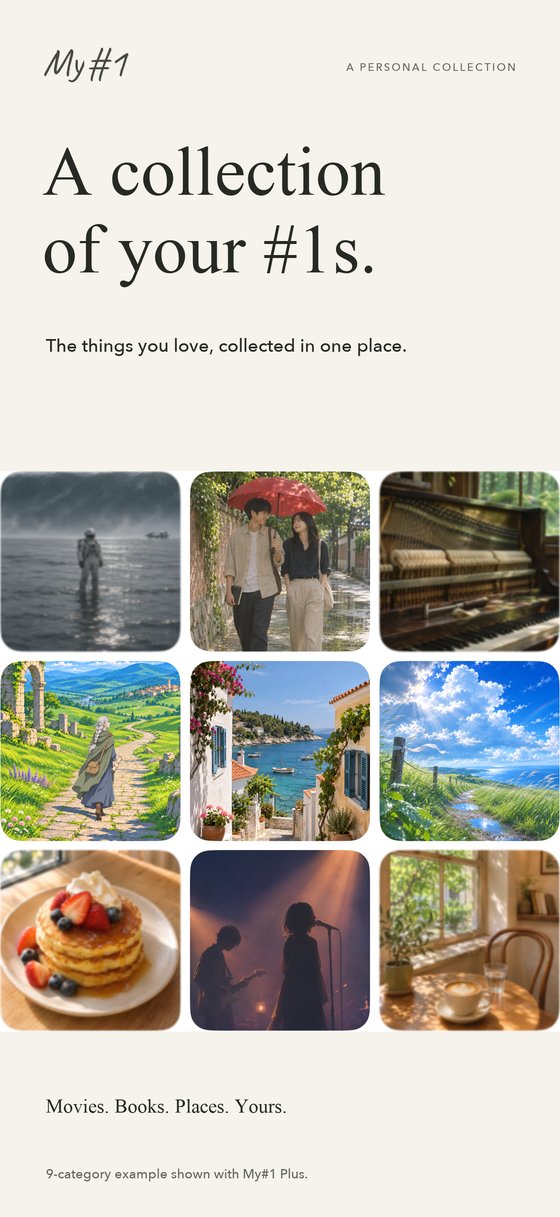
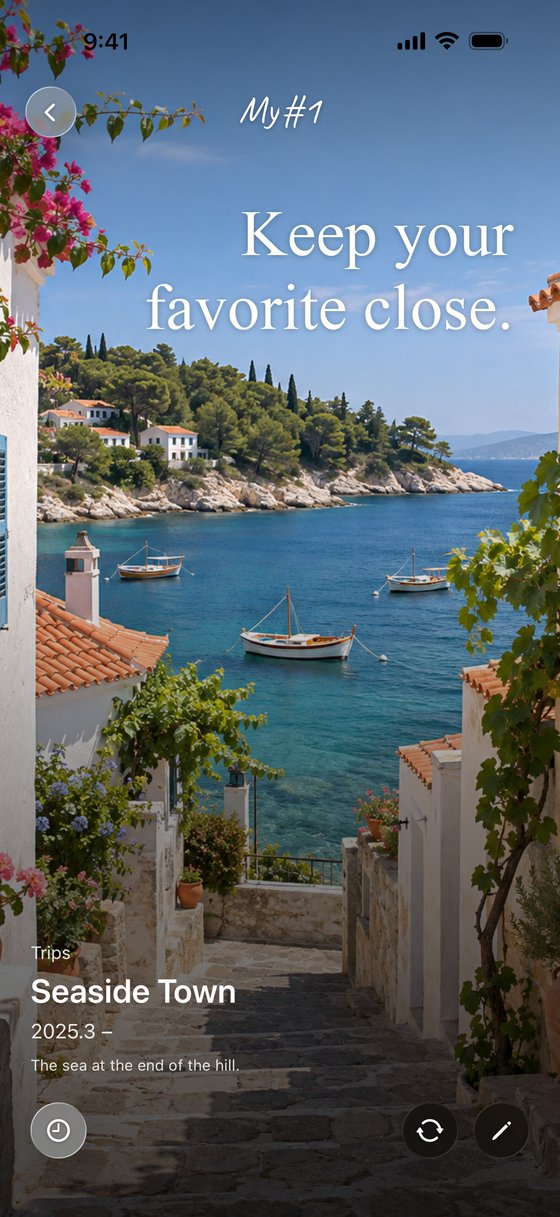
My#1 keeps your current #1 in each category you care about — movies, books, music, food — with a photo, a short note, and the month it became your #1.
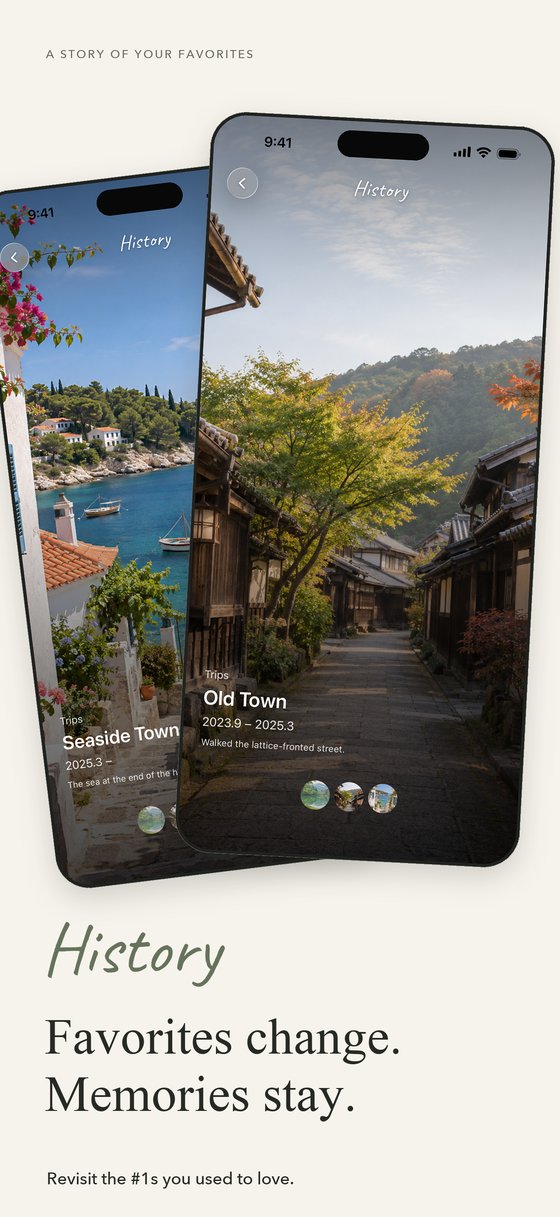
When your #1 changes, the previous one stays in History, ready to look back on.

Screenshots
6 screens
About the app
A place for what you love right now.
It isn’t a ranking of everything. Each category holds a single #1. Pick a photo, add a note and the month, and it’s recorded.
When a new favorite takes over, you update it. The previous #1 joins History, so you can see when it held the spot, and for how long.
- 01
Record your #1
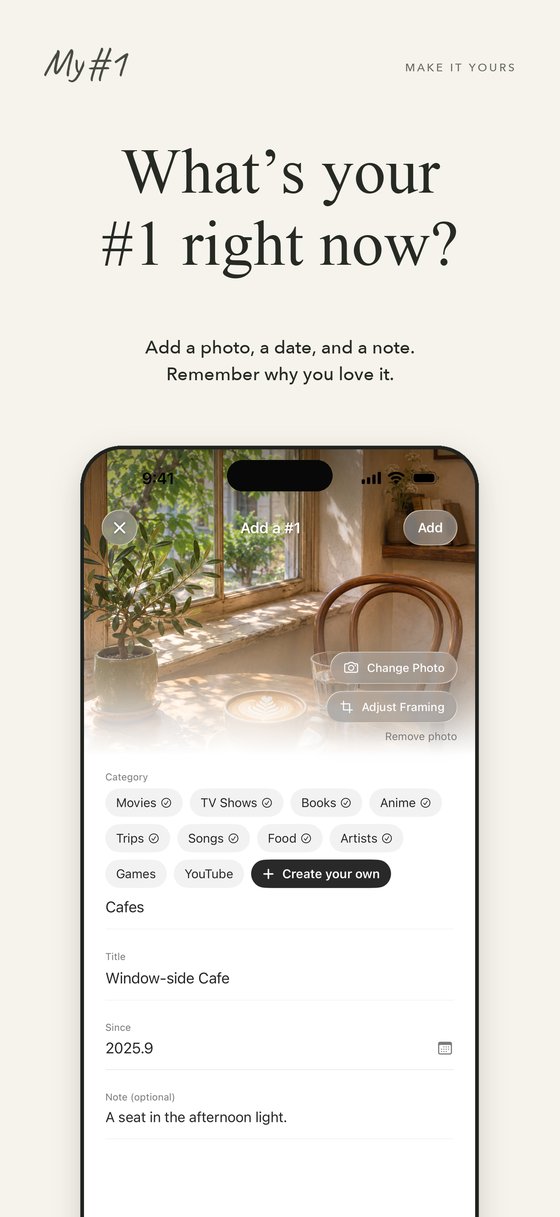
Add your current #1 to any category — movies, books, songs, food — with a photo, a note, and the month. Categories are yours to create.
- 02
Look back in History
Updating a #1 keeps the previous one in History. Turn the dial to revisit past favorites and when they held the spot. In Detail and History, swipe from the left edge of the screen to go back.
- 03
Choose how to browse
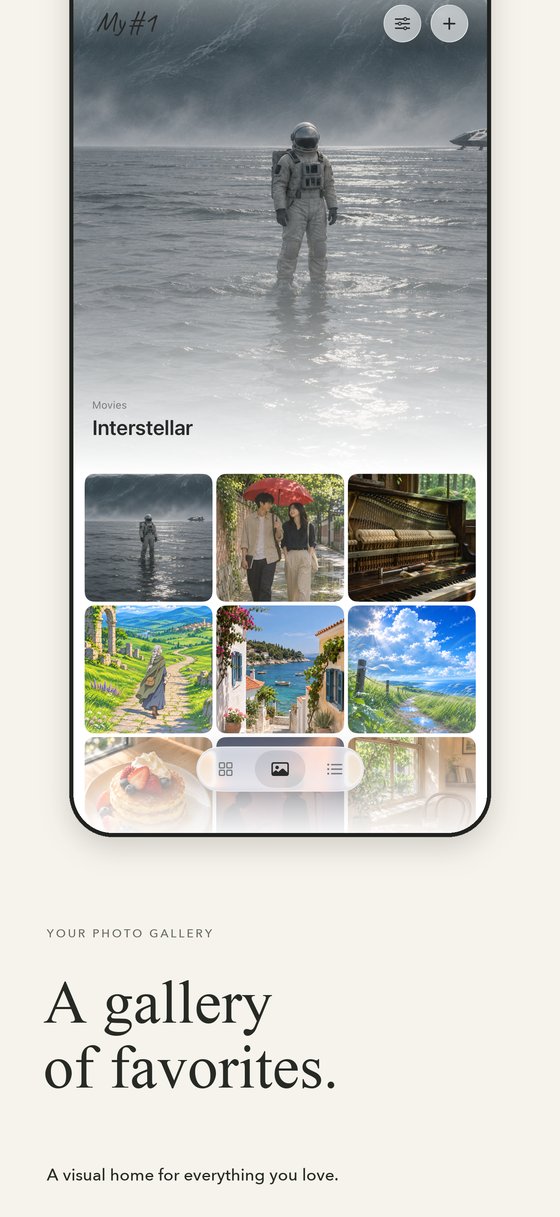
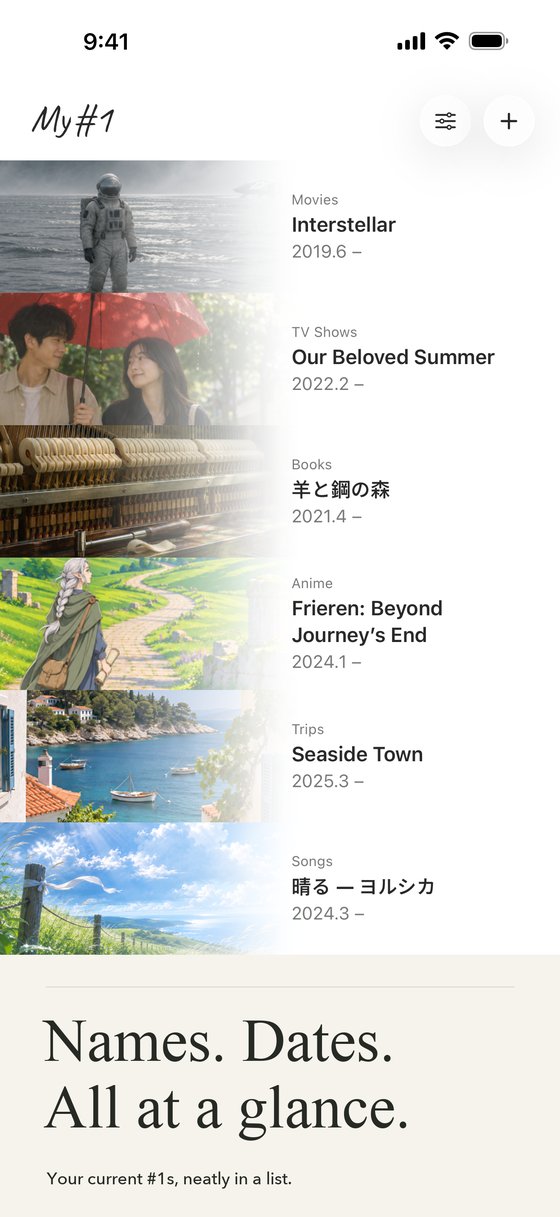
A Home of photo tiles, a Gallery for one photo at a time, and a List for names and dates. You can also adjust how each photo is framed, and in Detail and History choose “Fill Screen” or “Whole Photo”. With My#1 Plus, you can pick a different photo for Home, Gallery and List.
Plans
The free plan holds up to 5 categories. Adding, updating and editing a #1, History, and photo framing (position and zoom, plus “Fill Screen” or “Whole Photo” in Detail and History) are all free. The logo and heading typeface is Caveat.
My#1 Plus is a one-time purchase. It removes the category limit, lets you choose the logo and heading typeface from all six, and lets you use a different photo for Home, Gallery and List. If you already own My#1 Plus, choosing a different photo for each view is included at no extra cost. In Japan it is ¥800; please check the actual price in the App Store purchase screen.
Requirements
- iPhone (iOS 18 or later)
- Japanese and English
Your data
Your records, photos and settings are stored only on your iPhone. No account is needed. See the privacy policy for details.
Support
Contact
Email my1@takurokoyanagi.com.
I read every message. Replies may take some time.
FAQ
Can I move my records to a new iPhone?
Your records and photos are stored on your iPhone. If you set up the new iPhone from an iCloud or computer backup, or transfer with Quick Start, the records come along. Transfer and restore are handled by iOS, and My#1 cannot guarantee them. Deleting the app deletes the records, so please take care.
How do I use Plus on a new iPhone without buying it again?
Sign in with the same Apple Account you used to buy it, then open the adjust button at the top right of Home (Settings) → “My#1 Plus” → “Restore Purchase”.
Can I bring back a deleted category or an undone #1?
Yes. Open Settings → “Deleted Items” and restore it within 30 days. After 30 days it is deleted permanently. On the free plan, if restoring would exceed 5 categories, you’ll need to tidy up your categories first or get Plus.
The photo is cropped in Detail. Can I show the whole photo?
Open a record, tap the pencil (Edit #1), then “Adjust Framing” → “Detail”, and choose “Whole Photo” to show the photo without cropping. You can also adjust its position and zoom. History shows it the same way. This is free.
Where do I choose a different photo for Home, Gallery and List?
Open a record, tap the pencil (Edit #1), then “Adjust Framing”. Switch between Home, Gallery and List and tap “Choose Another Photo”. This requires My#1 Plus. Detail and History always use the main photo.
What happens to those photos if Plus is no longer active?
Home, Gallery and List go back to the main photo, but the photos you chose stay on your device and are used again when Plus is active.
How do I erase everything?
Deleting the app removes all records, photos and settings. After reinstalling, you can bring Plus back from Settings → “My#1 Plus” → “Restore Purchase”.
Terms of use
My#1 is licensed under Apple’s standard Licensed Application End User License Agreement.